Drafted for review. Last source review: 11 October 2026. No affiliate links are used in this article.
A spreadsheet can carry a trade business a surprisingly long way. It can hold customer details, quote values, dates, material notes and a reminder that someone still needs to send an invoice. The trouble begins when the file stops being a record and starts becoming the place where everyone tries to remember what is happening.

This guide is for a small UK trade business that has outgrown a workbook but does not want a dramatic, risky migration. It is not a buying guide. It is a practical method for moving the work, the minimum useful history and the habits around them into a job-management system.
The central idea is simple: do not migrate a spreadsheet. Migrate the decisions that the spreadsheet was helping people make.
If you move every column because it exists, you will recreate the clutter in a new interface. If you move only the information needed to quote, schedule, complete, record and get paid, the new system has a chance to become useful on the first working day.
The Friday file that had three owners
Picture a Friday afternoon with three versions of the same workbook. One is open on the office computer. Another is attached to an email with “updated” in the filename. A phone contains a photo of a handwritten change to a date. The person answering the customer’s call can see the booking, but not the latest material note. The person doing the work knows the access problem, but has not written it anywhere the office can see.
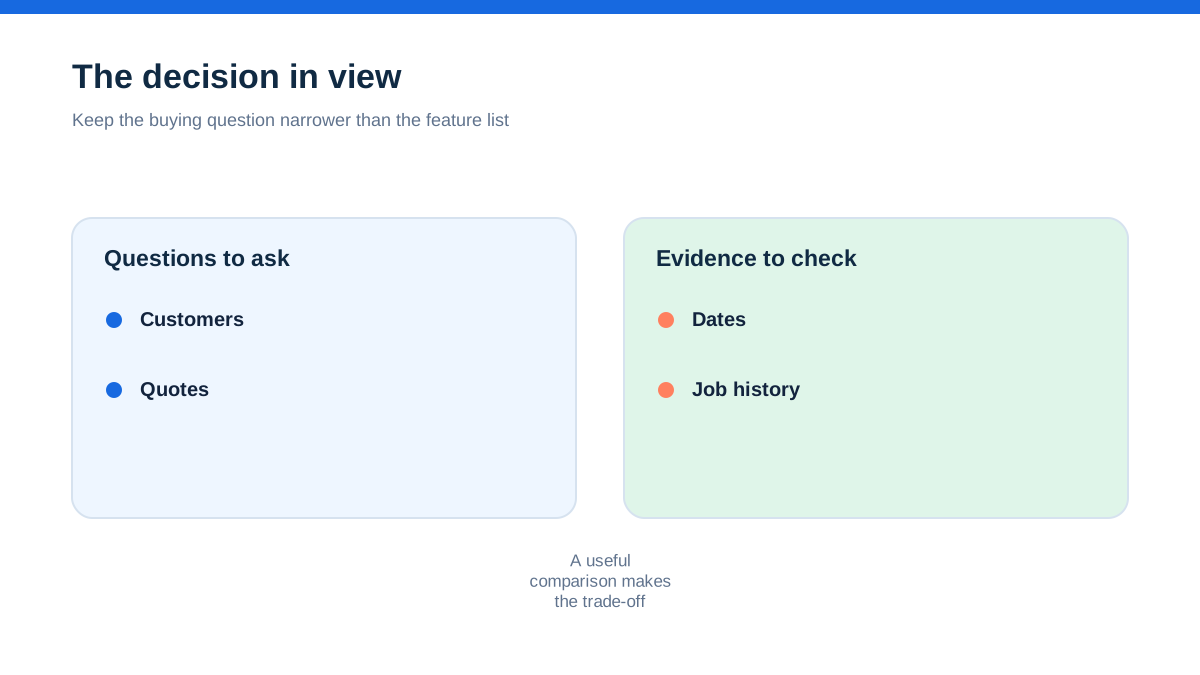
Nothing here requires careless people. A spreadsheet is often doing several jobs at once. It is a customer list, a quote register, a diary, a job card, a materials list and a memory aid. Those jobs have different owners, different update times and different levels of urgency. One grid makes them look as though they are the same kind of information.
That is the first diagnostic question: which decisions are currently being made from the sheet, and which details are merely stored there?
Write down the decisions before you look at software. Typical decisions include whether a lead has been qualified, whether a quote is ready to send, whether a customer has accepted, who is available, what needs to be taken to site, whether the work is complete and whether an invoice can be raised. These are workflow decisions. A new system should make their ownership and status visible.
The spreadsheet’s useful role is not its row-and-column shape. Its useful role is that it gives somebody enough information to act. Preserve that purpose, not the shape.
Find the handoffs, not the software
Before choosing fields, follow a job through the business. Start with the first enquiry and finish with the final record. Use one ordinary job type, not the most complicated project you have ever handled.
On paper, draw a line with these points:
- enquiry received
- information gathered
- quote prepared
- quote sent
- quote accepted or declined
- visit booked
- work carried out
- materials and time recorded
- customer sign-off or completion note saved
- invoice raised
- payment checked
- follow-up or warranty information stored
Now place the current spreadsheet, inbox, diary, messaging thread, paper notebook and accounting file under the point where each one is used. Do not judge the tools yet. You are looking for handoffs.
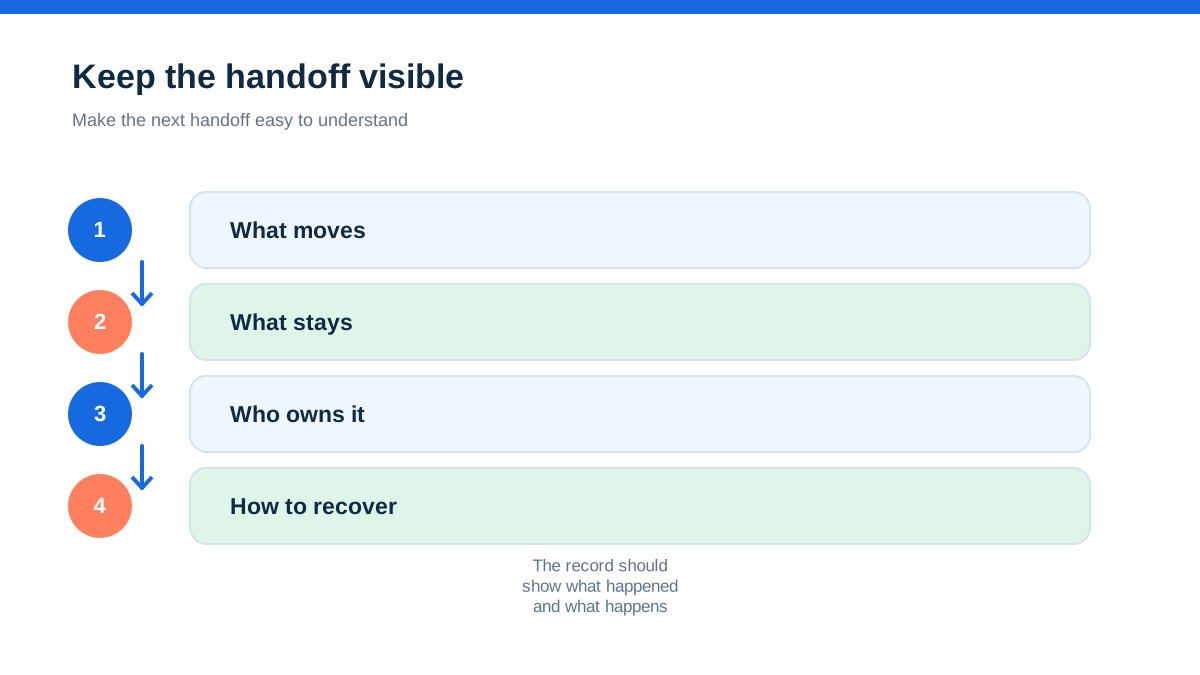
A handoff is where one person needs information from another person to continue the job. It might be the office passing access instructions to an engineer, or the engineer passing an extra-work note back to the person preparing the invoice. Handoffs are where missing fields and duplicated typing become expensive.
For each handoff, ask five questions:
- What must be known before the next action can happen?
- Who is responsible for entering or confirming it?
- Where is it recorded now?
- How does the next person know that it changed?
- What happens if it is missing?
The answers create a migration brief. They also prevent a common mistake: selecting a system because it has a long feature list, then trying to squeeze the business into its terminology.
Keep the brief to a single page. Include the jobs you run most often, the people who touch them, the records that must remain findable and the points where work currently stalls. That page is more useful than a list of fifty desired features.
Turn one job into a single source of truth
A useful job record should answer four questions without a separate search:
- Who is the customer and where is the work?
- What has been agreed?
- What is happening next, and who owns it?
- What evidence will be needed later?
That does not mean putting every detail in one long description box. It means making the job the place where related information is connected.
Create a field map before importing anything. Use four columns: current spreadsheet heading, new record location, owner and treatment. “Treatment” can be keep, combine, archive, replace or discard.
For example, “Client name”, “billing name” and “contact” may become a customer record with a named contact. “Job address”, “site address” and “property” may become a location attached to the job. “Quoted”, “booked”, “done” and “paid” may become separate workflow statuses rather than four free-text cells. “Materials” may become a job note or item list, depending on whether the information must be priced, ordered, issued or simply remembered.
Be strict with vague columns. A heading such as “notes” can hide access instructions, customer preferences, technical observations, price assumptions and private reminders. Split it by decision. If a note changes who can attend, how the work is done or what is charged, it needs a clear home and an owner.
Use the smallest data model that supports the work. A small business usually needs fewer record types than the spreadsheet suggests. A customer, a site, a job, a quote, a visit, a time or material entry and an invoice may be enough. Whether a chosen system names those things in exactly that way matters less than whether the links between them are clear.
The aha arrives here: a spreadsheet row is not a job record. It is a line of sight into a job that is spread across people and places. Migration succeeds when that line of sight becomes a shared record with a next action.
Give every status a meaning
A dropdown called “status” is not a workflow unless each value changes what someone does next. Keep the status list short. A possible sequence is enquiry, needs information, quote to send, awaiting customer, accepted, scheduled, in progress, waiting on something, ready to invoice, invoiced and closed.
The exact words should match the language your team uses. The important part is the rule beside each one.
“Awaiting customer” means nobody is booking labour yet. “Accepted” means the work has been agreed but may still need a date or materials. “Scheduled” means the customer has a time window and an assigned person. “Waiting on something” means the job is not forgotten, and a reason and review date are required. “Ready to invoice” means the record contains enough evidence for the person raising the invoice to proceed.
Write those rules in plain language and keep them near the system during the trial. If two people use the same status to mean different things, the dashboard will look tidy while the work remains ambiguous.
Avoid copying spreadsheet colours into the new system as your main control. Colours can help scanning, but a colour is not an instruction. Pair a status with an owner and a next date. A job in “awaiting customer” without a next review date becomes a quiet backlog. A job in “in progress” without a scheduled visit may be a false picture of capacity.
A practical test is to hide the notes and ask whether the status, owner and next action still explain the job. If they do not, improve the workflow before importing more data.
Design the migration around active work
Do not begin by importing the entire historical workbook. First divide the rows into three groups: active work, useful reference and expired clutter.
Active work includes accepted jobs, open quotes, unresolved queries, jobs awaiting materials, jobs that still need invoicing and anything with a live customer promise. Useful reference might include repeat customer details, previous site information, asset history or pricing notes that genuinely help future work. Expired clutter includes duplicate leads, abandoned quotes with no realistic follow-up, old reminders and columns nobody can explain.
The first migration should contain every active job needed for the next working period, plus the customer and site information required to handle it. Bring across enough history to make the record useful, not enough to make the new system feel like an archive.
Use a migration table outside the live system while you clean the data. Give each row a decision and a reason. Standardise obvious formatting, but do not silently “correct” uncertain customer information. Flag it for confirmation. A wrong address imported with confidence is more dangerous than an incomplete address marked for review.
De-duplicate customers using a deliberate rule. Compare name, phone, email and address, but treat a match as a prompt to check, not proof that two records are the same. Household names, landlords, property managers and trading names can look similar while representing different relationships.
Preserve identifiers that people already use, such as an old quote number or invoice reference. Put them in a legacy reference field if the new system has one. This makes conversations with customers and the accountant easier while the business changes its working language.
Keep the original workbook read-only during the transition. Do not delete it as soon as the import succeeds. It is a reference copy, not the new operating system. Decide who can access it and when it will be reviewed or archived.
Let the spreadsheet finish its last job
A controlled export is safer than repeated copying. Take a dated copy of the source workbook, record its filename and keep a note of the import date. Export each relevant table in a format the new system accepts, but inspect the exported file before uploading it.
Look for blank names, duplicated email addresses, dates interpreted as text, phone numbers stripped of leading zeroes, formulas exported as unexpected values and notes containing line breaks. Check that columns have one meaning each. If a column contains both “customer will provide access” and “use blue cable”, it is not ready for a direct import.
Map each source column to a destination field and mark fields that need manual review. Import a small sample first. Choose records that represent the ordinary work, an awkward address and a job with a note or attachment. Confirm where every value landed. Check that customer, site and job relationships were created as intended.
Then run a reconciliation. Compare the number of active jobs in the source with the number of active jobs in the new system. Compare a sample of names, addresses, agreed values, dates and legacy references. Confirm that open quotes did not become accepted jobs and that closed jobs did not appear on the live board.
Treat attachments separately. A spreadsheet may contain links to photos or files that will not travel with a CSV import. Create an attachment list for active jobs and move only what the next person needs. Give each file a readable name that includes the job reference and date. Do not assume an imported link will remain available after the old storage location changes.
If customer information is being moved into a cloud service, check the provider’s terms, access controls and export options. The ICO says personal information must be used fairly and securely, collected for a valid reason and limited to what is needed.[2] That is a useful design test even when the migration is an internal project.
Build the smallest useful workflow
Configure the new system around the field work, not around every menu item it offers. Start with one job type and make its path complete from enquiry to invoice. The workflow should have a place for the customer, site, scope, agreed price or pricing basis, date, owner, access information, materials, time, evidence and next action.
Create templates for repeated work, but keep them editable. A template should reduce forgotten information, not force every property into the same pattern. Include prompts such as parking or access, isolation requirements where relevant, customer contact on site, photos required, certification or handover documents, and what counts as completed.
Set permissions deliberately. People should be able to see what they need to do their work without turning every record into an open editing surface. Decide who can change prices, close jobs, delete records, export data and invite users. Keep an owner for the workflow itself.
Connect accounting only after the job record is reliable. An integration can move data quickly, but it cannot decide whether a variation was approved or whether a job is actually ready to invoice. Confirm which system owns the customer name, tax treatment, invoice number and payment state. Avoid having two places where the same financial fact can be edited without a clear rule.
Make mobile capture boringly easy. If the person on site must remember six fields at the end of a long day, the record will be incomplete. Put the most important capture first: what was done, what remains, time, materials, photos, customer sign-off and the next action. Use short prompts rather than a large blank note box.
Run a live trial with a real week
A trial with dummy data proves that buttons work. A trial with real work proves whether the workflow survives interruptions. Choose a short, contained period and use the new system for one job type or one person’s jobs. Keep the old workbook as a read-only reference, not as a second diary.
At the start of each day, ask whether every live job has an owner, a date and a next action. During the day, record changes at the point they happen rather than reconstructing them later. At the end of the day, review incomplete records and write down why the information was missed.
Do not respond to every problem by adding another field. First ask whether the field already exists under a confusing name, whether the status rule is unclear or whether the timing of capture is unrealistic. A field that nobody can complete at the right moment is not control. It is decoration.
Invite the person doing the work to describe the quickest honest version of the workflow. The office may want a detailed note, while the engineer needs a short prompt and a later handover task. Design for both: structured capture for important facts and a concise narrative for context.
Use the trial to test failure conditions. What happens if a customer changes the date by phone? What happens if the assigned person is unavailable? Can another person find the access note? Can the office see that extra work needs approval? Can an invoice be held because the completion evidence is missing? A system that handles only the happy path has not replaced the spreadsheet problem.
Protect customer records as you move them
Job systems often contain names, addresses, phone numbers, access instructions, photographs and sometimes information about occupants or vulnerabilities. Treat the migration as a records change, not only a software change.
Make a list of the information you are moving. Remove fields that do not support the job. Decide who needs access to customer contact details, site notes and photos. Use individual logins rather than a shared password where the system permits it. Review former users and old links. Set a retention approach for information that no longer has a business purpose.
The ICO’s small-business guidance says organisations should think about why information is held, collect only what they need, keep it secure, be transparent and have a way to respond to people’s rights.[2] The article is not a substitute for advice on your specific situation, but it gives a sensible checklist for a migration conversation.
Back up the source before changing it. Keep the read-only copy in a controlled location. Do not put a customer export into an unmanaged personal device merely because it is convenient for cleaning. If a spreadsheet has been emailed around, record which copy is the agreed source before beginning.
Write down what happens if the new service is unavailable. A short contingency note might identify the last export, the person who can access it and the minimum information needed to attend a booked job safely and professionally. The aim is continuity, not a second full system.
Know when the old sheet can go
The old workbook can be retired when it is no longer needed to make a live decision. That is more useful than setting an arbitrary calendar date.
Test the retirement question by asking someone unfamiliar with the migration to find five things using only the new system: the next visit, the agreed scope, the access note, the material or time record and the evidence needed for invoicing. If they still need the workbook for ordinary work, find out exactly why. The answer may reveal a missing field, a bad permission, a broken import or a workflow rule that was never agreed.
Keep a controlled archive for reference where appropriate, but separate it from the live operating process. Mark it clearly as historical. Do not allow people to update the old sheet “just in case”, because an unplanned second source of truth quickly becomes permanent.
Write a short cutover note: the date the new system became authoritative, the location of the historical archive, who owns corrections and how old references can be found. Tell customers nothing about the internal change unless it affects their experience, but make sure the team uses one consistent record when answering them.
Review after the first full billing cycle. Look for jobs that reached completion but lacked time or material records, invoices delayed by missing evidence, duplicated customer records and jobs whose status did not match reality. Fix the workflow, not just the individual rows.
The final aha is less glamorous than a software demo: the migration is complete when the business can answer “what happens next?” without asking which version of the spreadsheet is current. Keep the system small, make ownership visible and let the old workbook become history rather than competition.
This guide is practical information, not legal, tax or data-protection advice. Check your own obligations and professional guidance before changing record-keeping arrangements.
- [2] | Getting started with data protection (11 October 2026)
Affiliate status: no affiliate links are used on this page. Provider links are direct sources only, pending programme approval.